Building a Workout
Create workouts in seconds with HYPE AI, or build them from scratch with the manual builder.
1. Two ways to build
ROXFIT gives you two ways to create workouts:
HYPE (AI)
Describe what you want in plain English - or snap a photo of a whiteboard workout - and HYPE generates it for you. Great for quick builds and when you want inspiration.
Manual Builder
Build block by block with full control over every exercise, set, rep, and rest period. Great for custom programming and detailed plans.
Where to find them
| Entry point | HYPE | Manual |
|---|---|---|
| HYPE button (centre of bottom bar) | Yes | Via "Build your workout manually" |
| Train tab > Create workout | Opens HYPE | Via "Build your workout manually" |
2. Building with HYPE (AI)
HYPE is ROXFIT's AI workout builder. Tell it what you want and it builds a complete workout for you.
Step 1 - Open HYPE
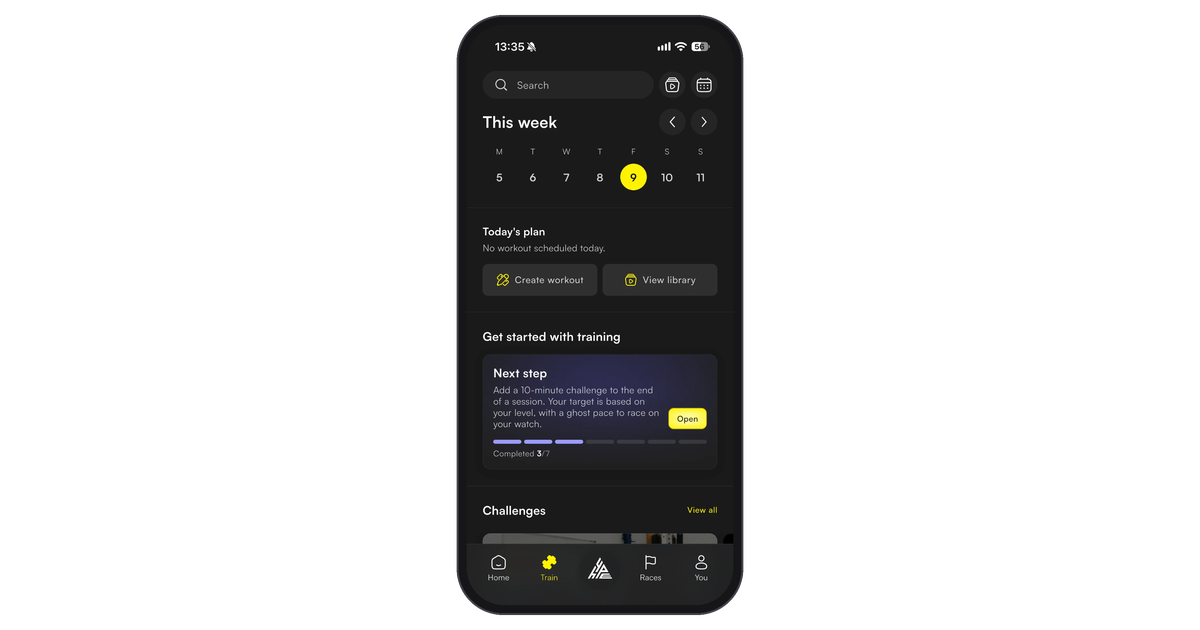
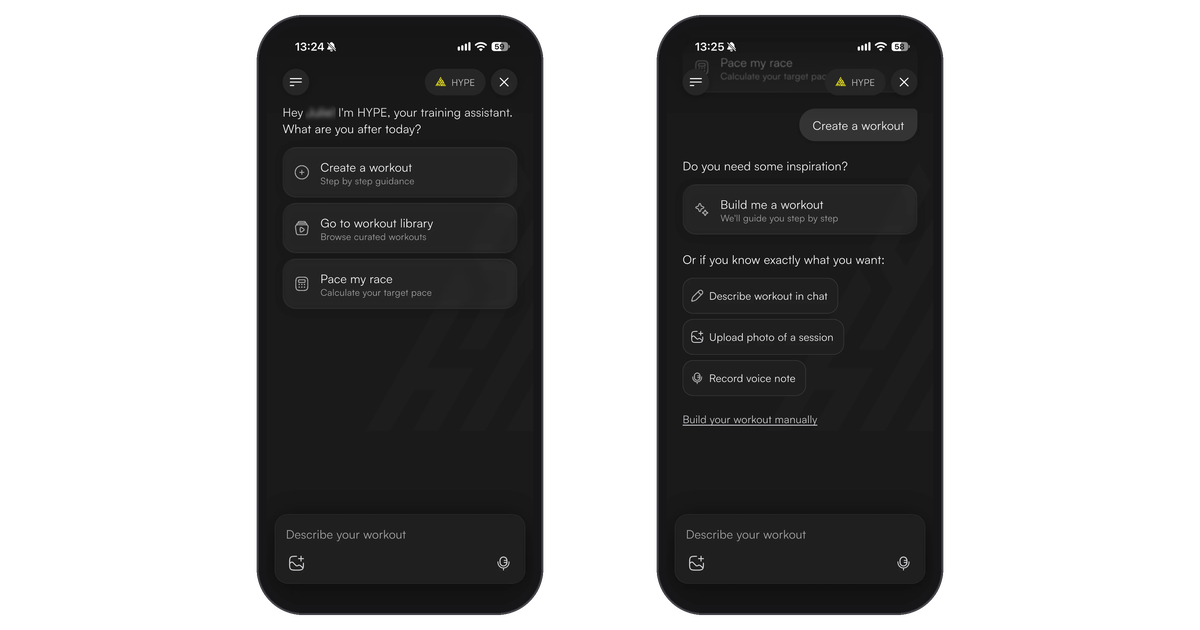
Tap the HYPE button in the centre of the bottom navigation bar, or Create workout on the Train tab. HYPE gives you three options: Create a workout, Go to workout library or Pace my race. Tap Create a workout.
Step 2 - Tell HYPE what you want
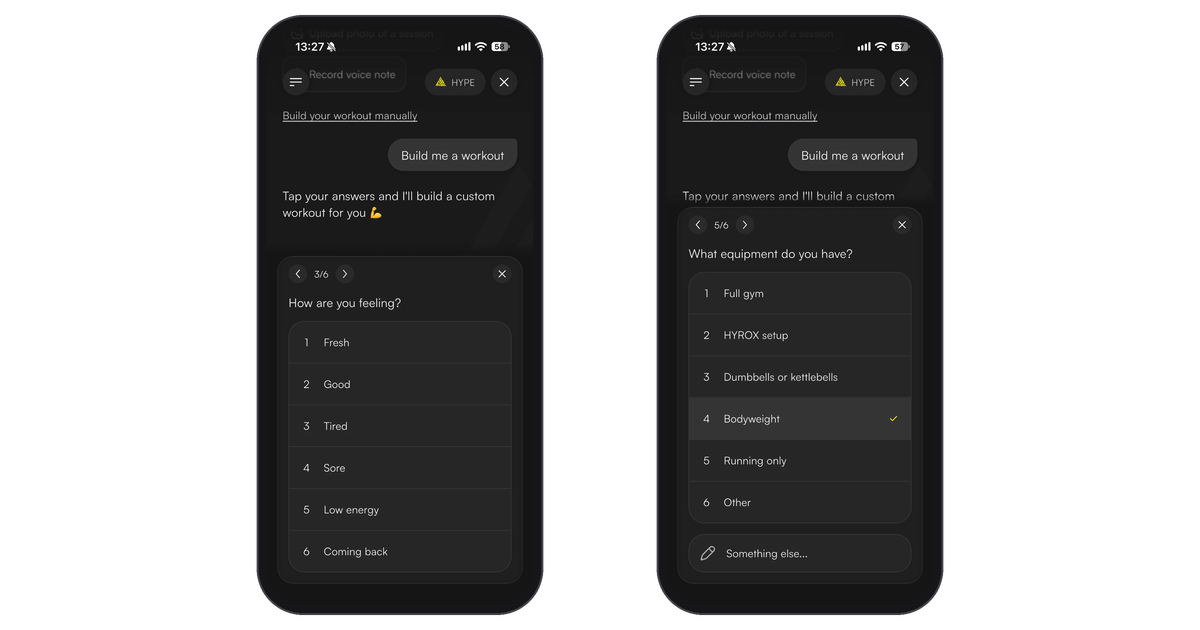
Need ideas? Tap Build me a workout and HYPE asks a few quick questions: what you want to train, how you're feeling, what equipment you have and how hard it should be. Tap your answers and it builds the workout around them.
Know what you want? Pick one of these:
| Option | Example |
|---|---|
| Describe workout in chat | "Build me a 45 min HYROX prep workout with ski erg and sled push" |
| Record voice note | "I want a 30 minute EMOM with kettlebell swings and burpees" |
| Upload photo of a session | A whiteboard workout at your gym, or a screenshot of a session from another app |
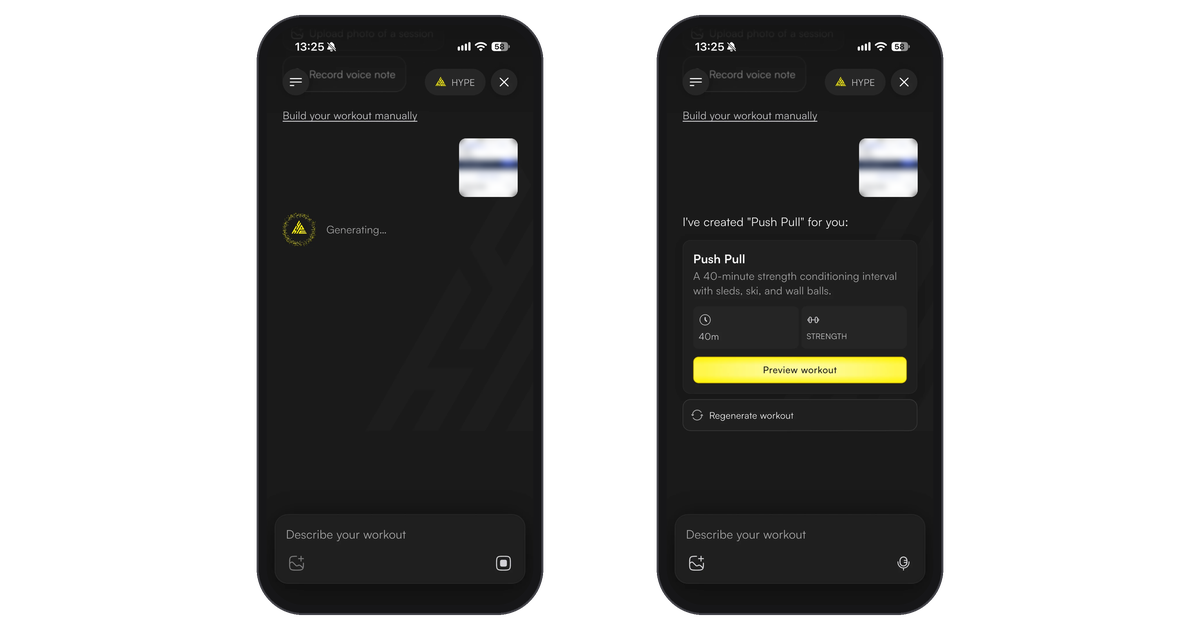
HYPE shows "Generating..." while it builds your workout.
Step 3 - Preview and refine
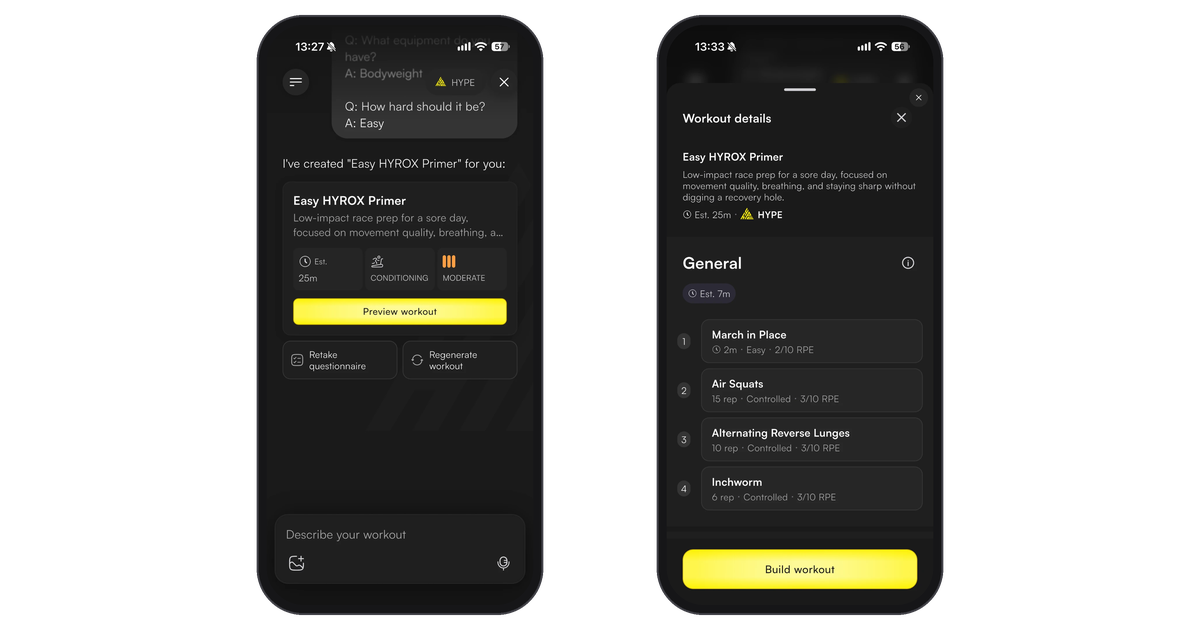
HYPE shows a preview card with the workout's length, type and intensity. From there you can:
- Tap Preview workout to see every block and exercise.
- Tap Regenerate workout for a different version, or Retake questionnaire to change your answers.
- Send another message to tweak it, like "make the runs 1km instead of 800m" or "swap the ski erg for a row".
Step 4 - Save your workout
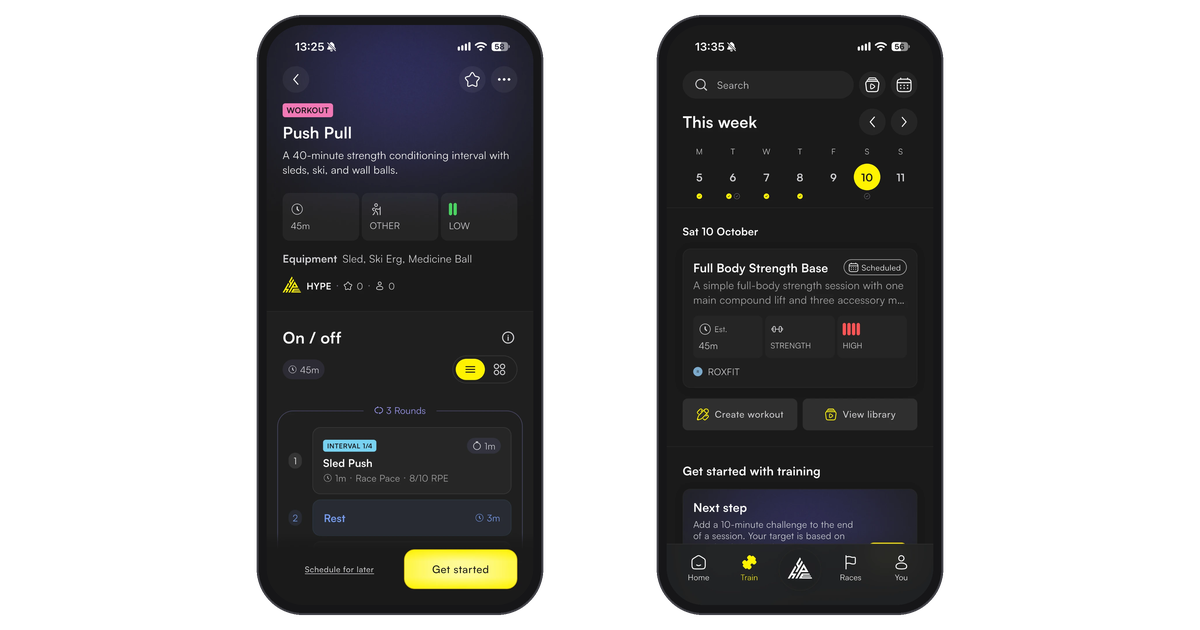
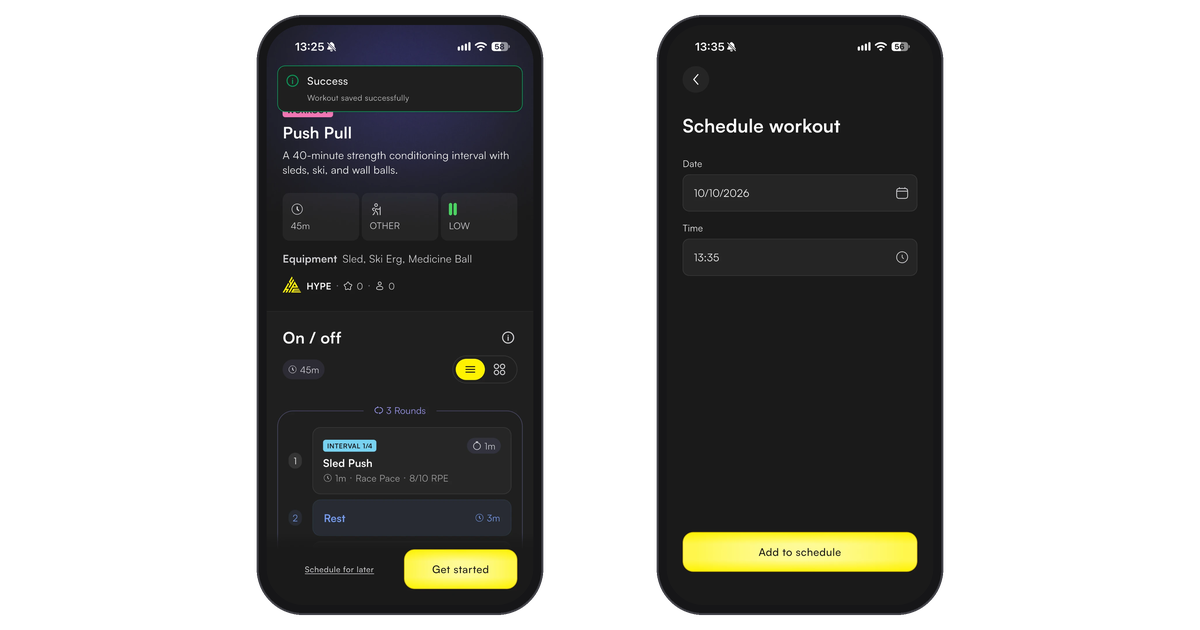
Happy with it? In the workout details, tap Build workout. It's saved and you land on the workout page. Tap Get started to train now, or Schedule for later, pick a date and time, then tap Add to schedule.
Your past HYPE chats are in the menu at the top left, so you can go back to any workout you've built.
3. Building manually
The manual builder gives you full control over every detail of your workout. Workouts are built from blocks - sections that each have their own timing structure and exercises.
Step 1 - Open the builder
Open HYPE (the centre button, or Create workout on the Train tab) and tap Build your workout manually.
Step 2 - Choose a block type
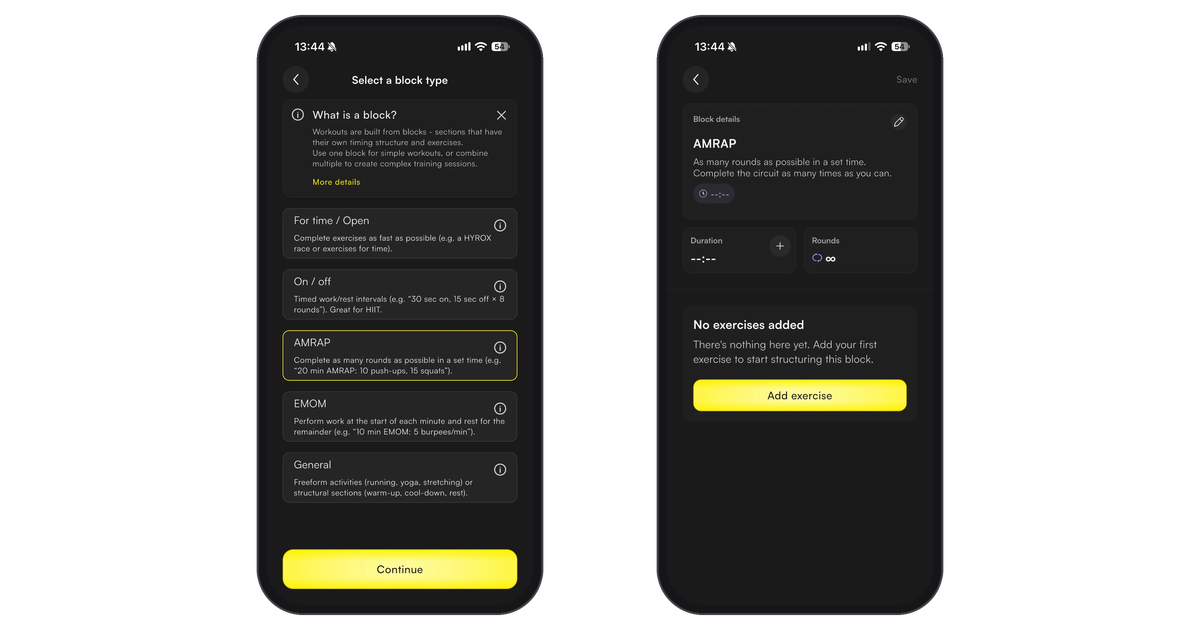
Pick a block type and tap Continue. Each type controls how timing and rounds work:
| Block type | How it works | Example |
|---|---|---|
| For time / Open | Complete as fast as possible within an optional time cap | HYROX race simulation, benchmark WODs |
| On / off | Timed work/rest intervals for a set number of rounds. Great for HIIT | 30 sec on / 15 sec off x 8 rounds |
| AMRAP | As many rounds as possible in a set time | 12 min AMRAP of burpees, pull-ups, runs |
| EMOM | Work at the start of each minute, rest for the remainder | EMOM 10: 5 deadlifts every minute |
| General | Freeform - running, warm-up, cool-down, rest, yoga | 10 min warm-up, 5 min cool-down |
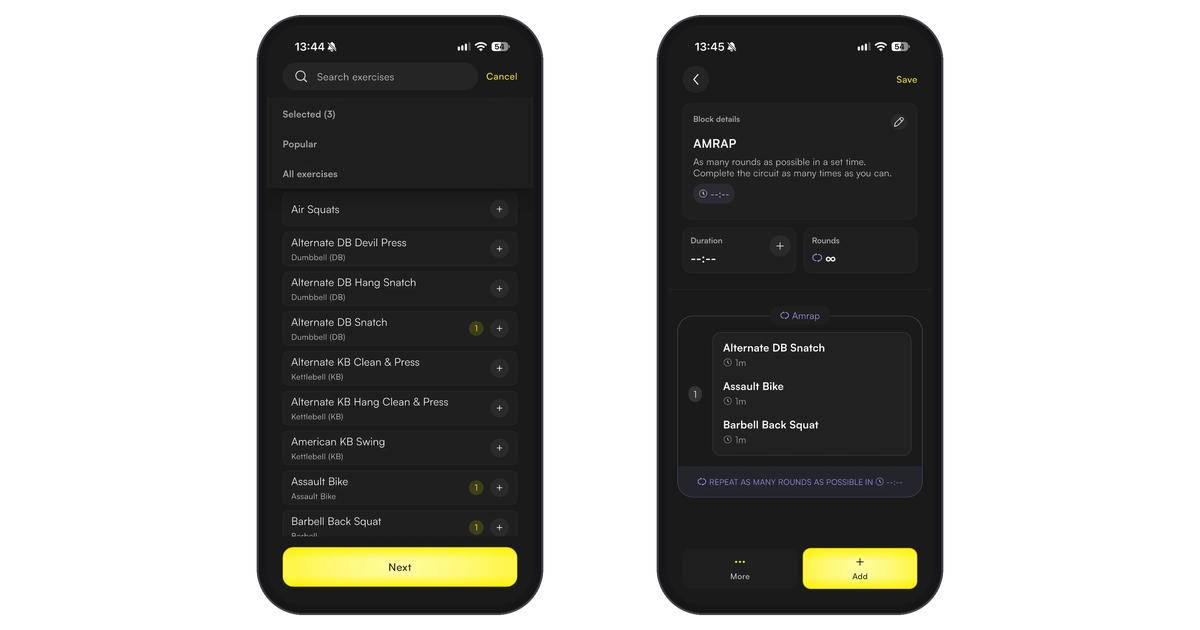
Step 3 - Add exercises
To set how long the block runs, tap + on Duration. Then tap Add exercise to open the exercise library. Search, or browse Popular and All exercises, tap + on each exercise you want, then tap Next.
Step 4 - Configure exercises
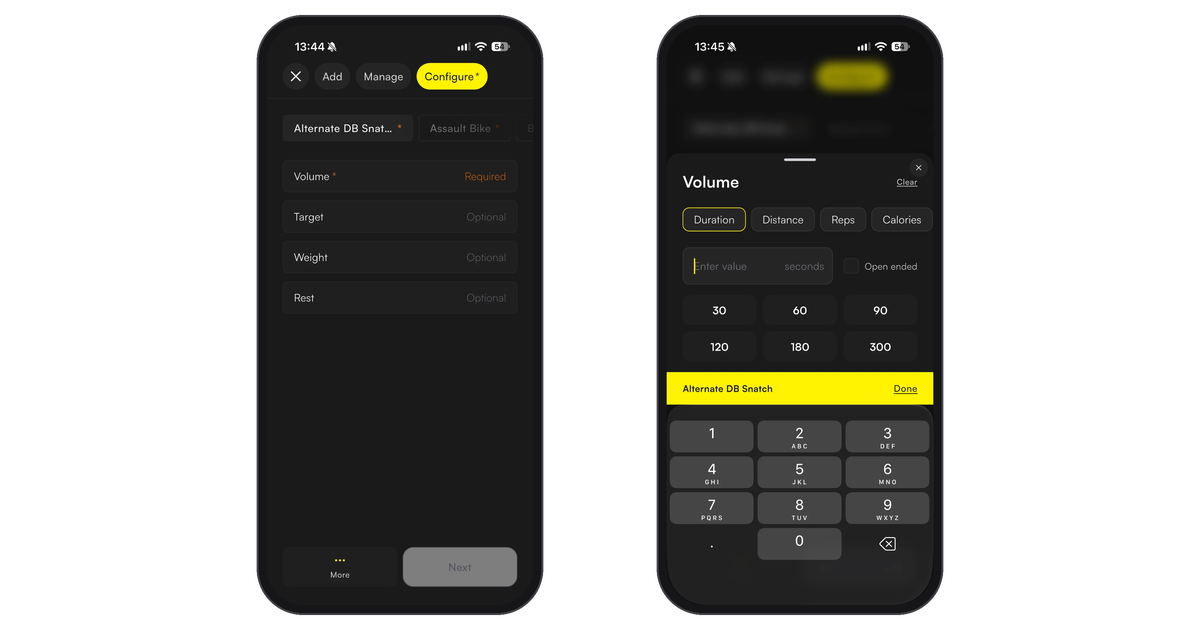
Each exercise needs a Volume. Everything else is optional:
- Volume (required) - duration, distance, reps or calories, or tick Open ended
- Sets and rest between sets
- Weight
- Target
- Round variation - different config per round
Step 5 - Add more blocks (optional)
You can add multiple blocks to build complex workouts. For example:
- Block 1: General (Warm-up) - 10 min
- Block 2: For time - 8 x 1km run + ski erg + sled push
- Block 3: General (Cool-down) - 5 min
Step 6 - Save
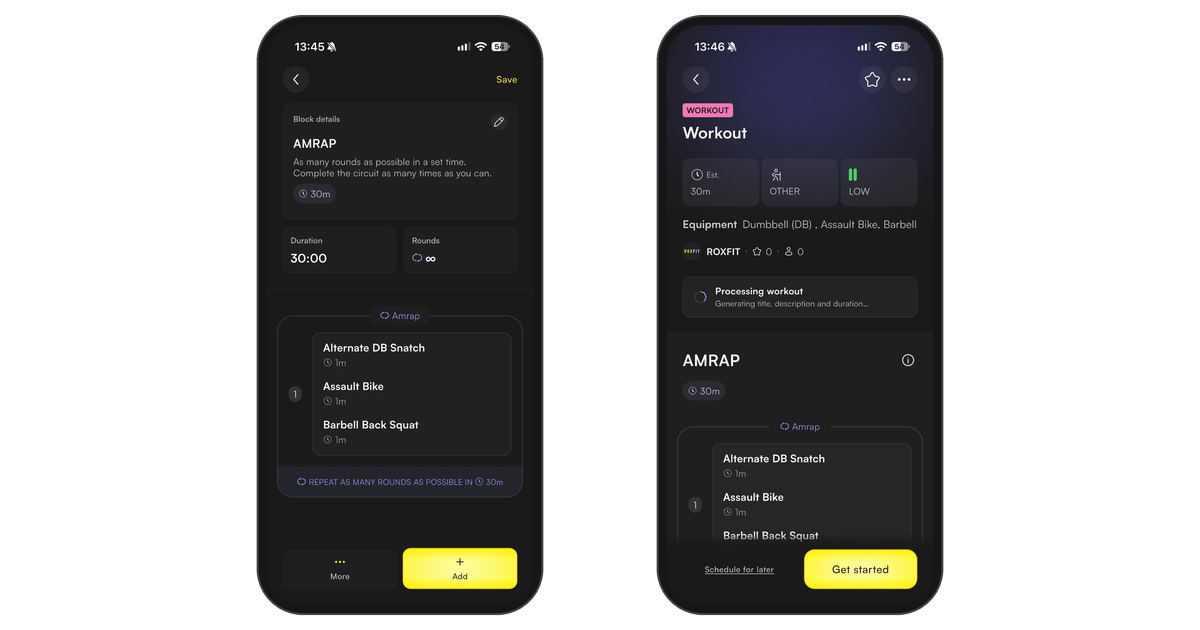
Tap Save in the top-right corner. Your workout is saved and you land on the workout page, where ROXFIT fills in a title, description and duration for you.
4. What to do with your workout
Once you've saved your workout (from HYPE or the manual builder), you'll land on the workout preview page. From here you can:
- Start on your phone - play it in the ROXFIT workout player
- Sync to your Apple Watch, Garmin or Wear OS watch - see our device guides:
- Schedule it - add to your planner for a specific day
- Share it - share with friends or your followers